
図入りのPDF版をご覧になりたい方は以下のリンクをクリック
A PDF version with illustrations is available at the link below.
Playback Methods.pdf
NASのライブラリーを再生する
Play the NAS Library
ウェブブラウザに「smpd.local/」、もしくはRaspberry PiのIPアドレスを入力し、WebUIを表示させます。
Enter "smpd.local/" or the IP address of Raspberry Pi in the web browser to display the WebUI.


Note
高音質再生を実現するため、symphonic-mpdでは固定IPアドレスでの運用を推奨しています。しかし初期設定がDHCPになっているのは、ネットワーク設定に詳しくない人でも、簡単にsymphonic-mpdを楽しんでいただきたいためです。より高音質な再生を求めるならば、FAQ「固定IPアドレスを設定したい」を参考に、ぜひ固定IPアドレスでの運用に切り替えてください。
In order to achieve high sound quality playback, symphonic-mpd recommends using a static IP address. However, the default setting is DHCP so that users who are not familiar with network settings can easily enjoy symphonic-mpd. If you want to play with higher sound quality, please refer to FAQ "I want to set a static IP address." and switch to using a static IP address.
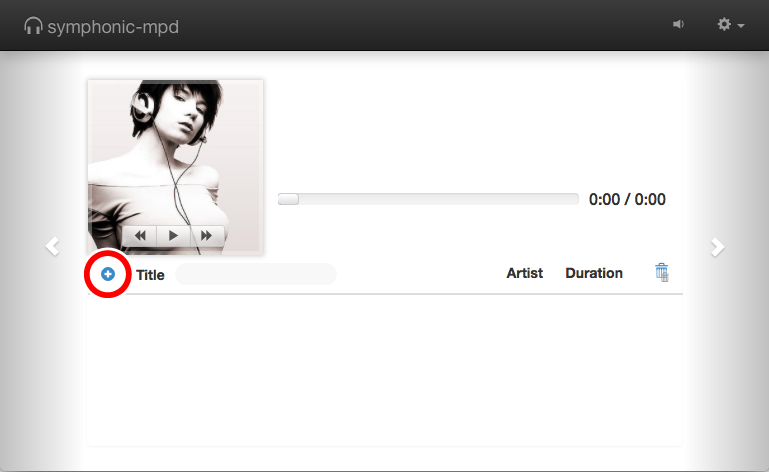
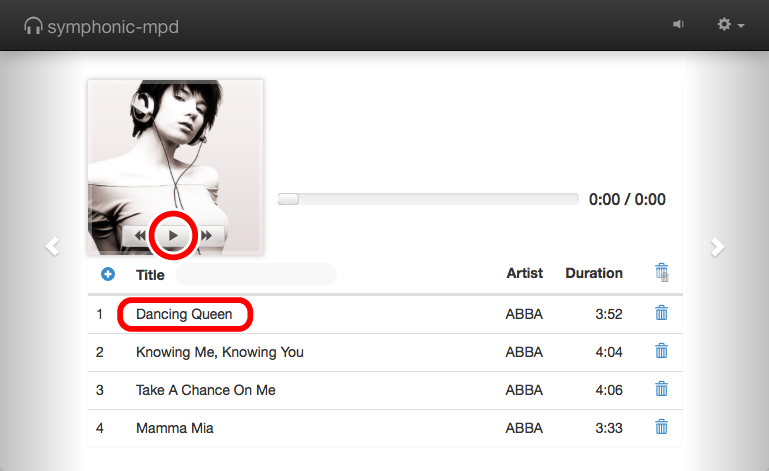
queueの左上にある「+」印をクリックします。
Click the “+” sign at the top left of the queue.
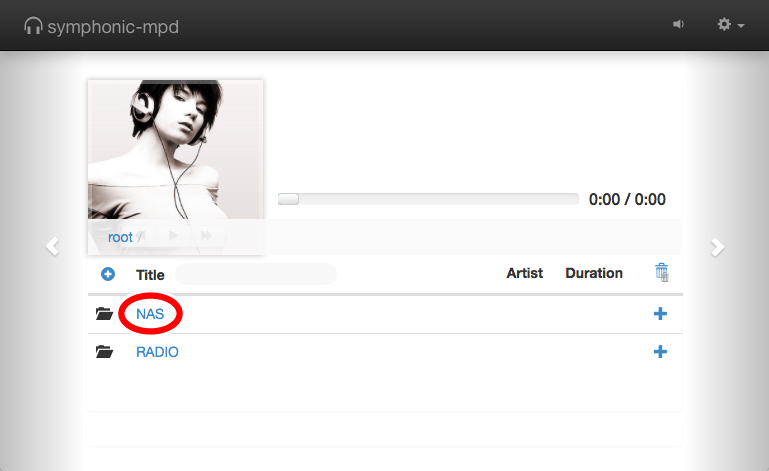
リストに表示される「NAS」をクリックします。
Click "NAS" displayed in the list.
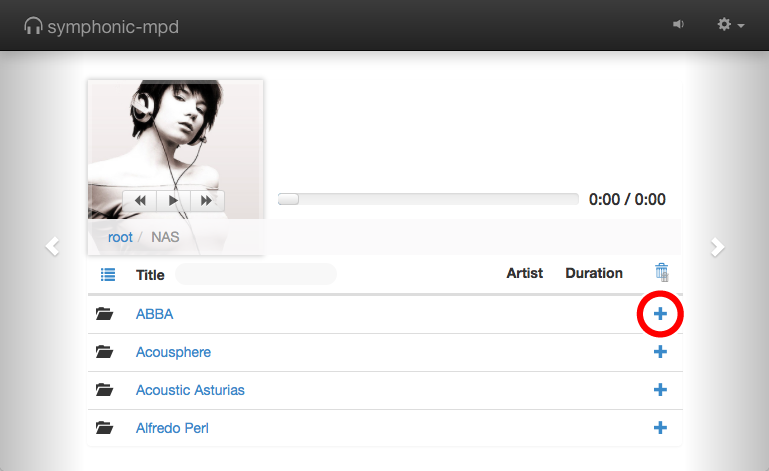
再生させたい楽曲・アルバム(フォルダ)をクリックして選択し、queueに追加します。
Click to select the song / album (folder) you want to play and add it to the queue.
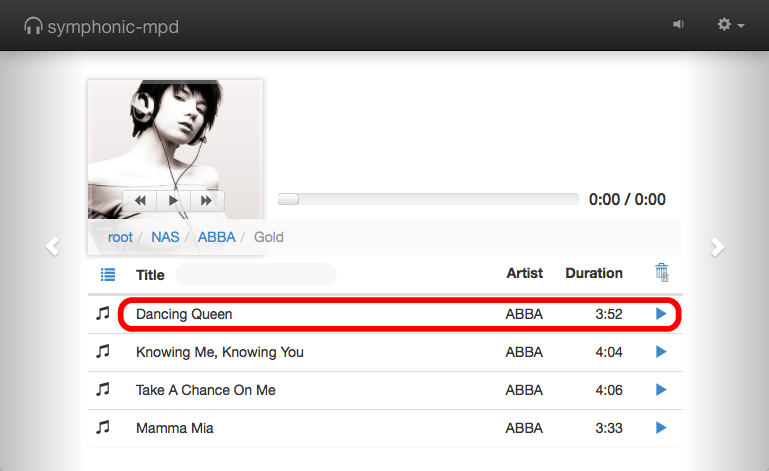
「再生ボタン」をクリックするか、queue上の楽曲をクリックすることで再生がスタートします。
Click the “Play button” or click the song on the queue to start playback.
AirPlayで音楽を再生する
Play Music with AirPlay
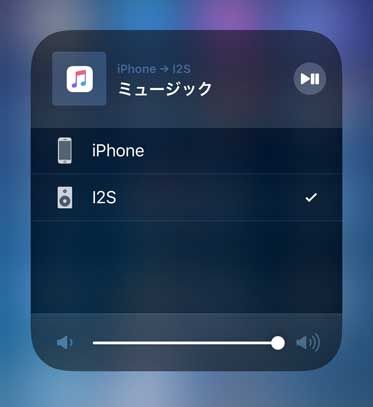
iPhone/iPad上で、AirPlayデバイスパネルから「I2S」を選択してください。
On the iPhone or iPad, select “I2S” from the AirPlay device panel.
Spotifyを再生する
Play Spotify
最初にSpotifyプレミアムアカウントのユーザーID・パスワードを設定する必要があります。手順は以下の通りです。
It is necessary to input the Spotify Premium account ID and password in the setting file. The procedure is as follows.
-
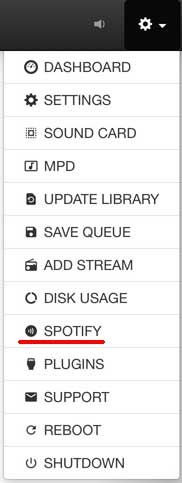
WebUI右上の歯車アイコンをクリックしプルダウンメニューを表示させ、「SPOTIFY」を選択します。
Click the gear icon at the top right of the WebUI to display the pull-down menu, and select “SETTINGS”.
-
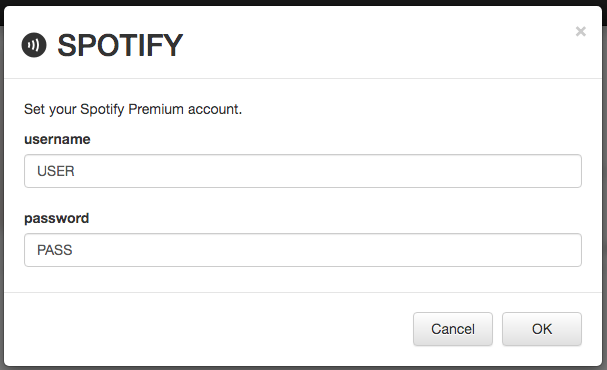
「SPOTIFY」パネルが開きます。ユーザーIDとパスワードを入力してください。
“SPOTIFY” panel opens. Enter your user ID and password.
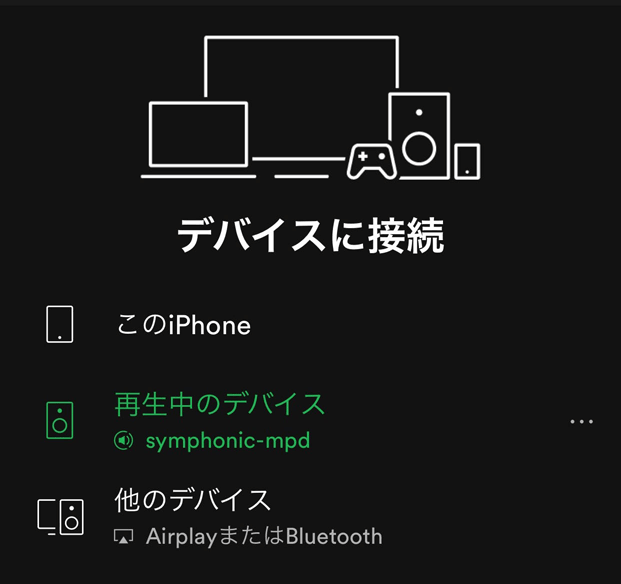
- Raspberry Piと同じネットワーク上のiOS/AndroidのSpotifyアプリを起動させ、デバイスメニューから「symphonic-mpd」を選択します。
From the iOS / Android Spotify app on the same network as the Raspberry Pi, select "symphonic-mpd" from the device menu.
注意:NASライブラリーの再生サービスとAirPlay再生サービス、Spotify再生サービスは排他的関係にあります。いずれかのサービスが実行中は、他の2つのサービスを利用できません。例えば、AirPlayデバイスパネルでI2Sが選択されている状態では、NASライブラリーの再生も、Spotifyアプリから再生デバイスとしてsymphonic-mpdを選択することもできません。
Note:NAS Library playback service, AirPlay playback service and Spotify playback service are in an exclusive relationship. While either service is running, the other two services are unavailable. For example, if I2S is selected in the AirPlay device panel, you cannot play NAS library or select symphonic-mpd as playback device from Spotify app.